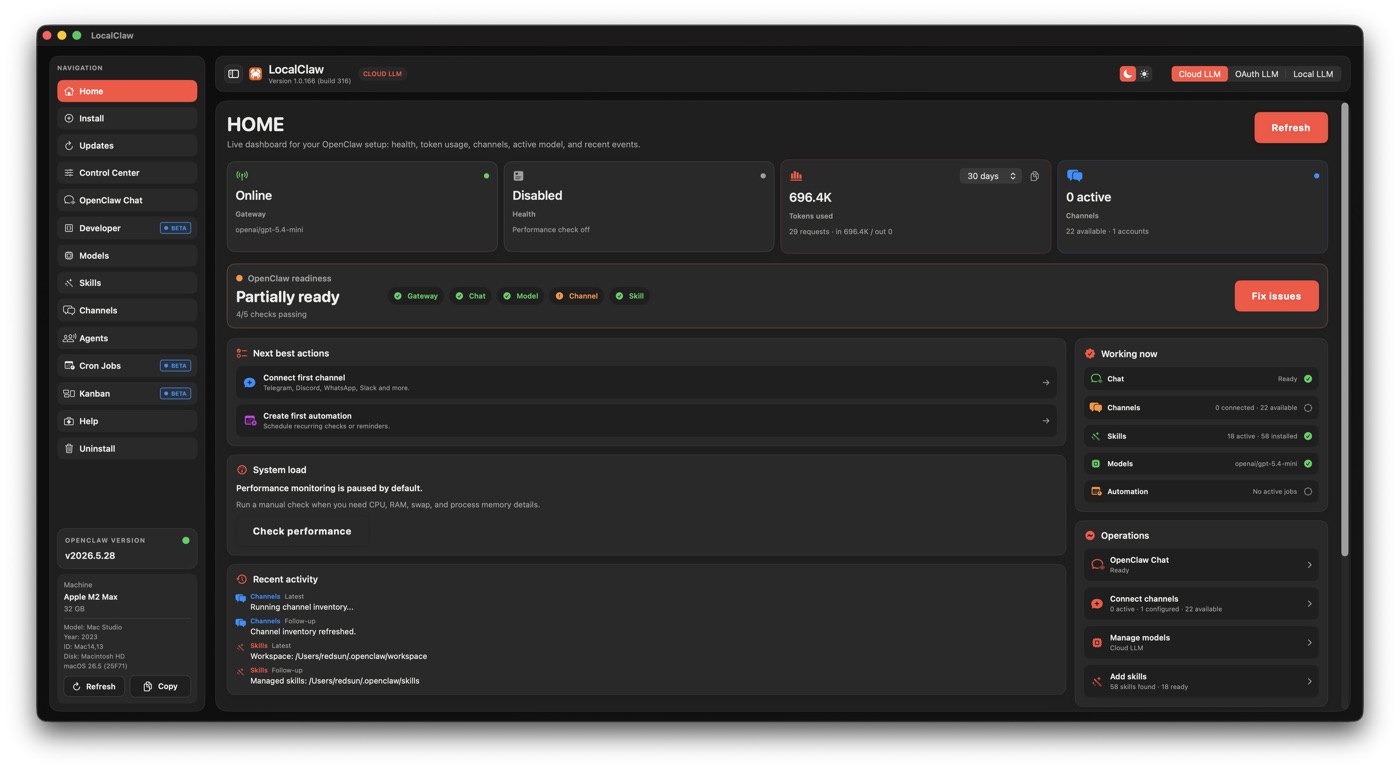
A bigger release. A better reason to start.
LocalClaw is now compatible with the new OpenClaw. If you have been waiting for a good moment to build a useful AI workspace on your Mac, this is one. The release brings together better continuity, clearer controls and more ways to turn a conversation into work you can revisit.
The name needs one clarification: OpenClaw 2.0 is the official launch branding; 2026.8.1 is the stable software version. OpenClaw’s announcement is dated August 30, and GitHub published the stable release on August 31. These describe the same launch.
OpenClaw calls it the largest update in its history, crediting 933 contributors and more than 16,000 pull requests. The more useful story is its direction: simplify the first conversation, improve the browser workspace, and let a personal assistant grow into ongoing projects and shared work.
Sources: official OpenClaw 2.0 announcement · stable 2026.8.1 release.
LocalClaw’s role is straightforward: provide a native Mac home for your OpenClaw setup. You can explore the release without pretending that a longer feature list automatically makes a better workflow. Start with something useful, keep its scope clear, and expand from there.
What’s new in OpenClaw 2.0?
Conversations become easier to find and follow
Conversation search can find exact words or phrases in visible user and assistant messages and reopen the surrounding context. It respects session visibility; it does not search hidden reasoning, image content or incognito sessions. Think of finding the decision you made last Tuesday, rather than asking the model to guess it again.
Search is particularly valuable when you name projects consistently. A distinctive client name, release label or document title gives both you and your agent a reliable handle on earlier work. Exact transcript search and semantic memory serve different purposes.
Source: OpenClaw session search.
Explore a different direction without starting over
Conversation branching lets you return to an earlier point and try another path. For a proposal, keep the original approach while exploring a shorter version or a different audience. It is a useful way to compare alternatives while preserving the work that led to them. The release also adds editable prompt queues, giving you more control over what comes next while an agent is working.
Source: conversation and prompt-queue release notes.
Memory gets a more deliberate role
Active Memory can retrieve bounded context from the same agent’s other eligible private conversations. On personal installations without configured direct-message isolation, cross-conversation recall defaults on when the required memory feature is enabled. Groups and channels are excluded from this recall path, and you can turn it off.
A separate feature, Dreaming, consolidates sufficiently strong material into longer-term memory. It is enabled by default, uses provenance and validation checks, and exposes a Dream Diary for inspection. It is background context maintenance, not a guarantee that everything you say will be remembered correctly.
Sources: Active Memory · Dreaming and its controls.
For real projects, the benefit is less repeated briefing. Keep durable preferences separate from temporary instructions: “use our editorial style” can outlive a session; “ignore this draft” probably should not become a permanent rule. Review what your assistant retains as the project changes.
Useful procedures can become reusable skills
Self-learning turns successful work and corrections into procedures that future sessions can reuse through Skill Workshop. The default automatic mode can apply eligible scanner-approved changes; review-first and disabled modes are available. This changes skills and instructions, not the underlying model’s weights.
A repeatable export checklist is a sensible candidate. An unverified shortcut that happened to work once is not. The practical habit is to inspect learned procedures the way you would inspect a colleague’s checklist before relying on it.
Source: self-learning and Skill Workshop.
Results can become interactive dashboards
OpenClaw can show widgets in chat and pin them to session dashboards with tabs and resizable layouts. A conversation can become an ongoing project view instead of a sequence of static replies. Render-only widgets have network access disabled; additional data, network or action capabilities follow the session’s permission policy.
That opens a practical pattern: ask for a view, inspect it, then refine it. A dashboard could show milestones, a comparison table or a weekly workload. Connected data still needs an appropriate source and permission; an attractive widget does not make its numbers trustworthy.
A stronger foundation for local AI
OpenClaw’s new managed llama.cpp path can install and supervise a local server after consent, or connect to a server you already operate. Managed mode also supports local memory embeddings. The distinction matters: connecting to an existing llama-server does not automatically provide the managed embedding setup.
LocalClaw already supports LM Studio for local inference. That is a separate setup path from upstream’s managed llama.cpp onboarding. Compatibility with OpenClaw 2.0 does not mean every upstream model selector has been reproduced in LocalClaw’s native interface.
Source: official llama.cpp provider documentation. LocalClaw’s available paths are described on the app page.
Choose your first model for the work you actually do. For short drafting, responsiveness may matter more than maximum context. For agents, reliable tool use matters. For image tasks, the selected model needs vision support. Keep enough memory available for macOS and your other applications, and test a representative task before building an elaborate automation around a model.
Start practical. Use the LocalClaw model catalogue and RAM and GPU guide to narrow your choices, then verify the model with your own documents and workflows. A downloadable model is not automatically a comfortable fit for your Mac.
More capability, with clearer controls
Credentials have a safer entry point
The new secrets tool can request a credential through a masked prompt. The value goes to the Gateway’s store without appearing in that request’s chat transcript or model context. The prompt identifies the requester and lets you review allowed destinations. OpenClaw also documents an opt-in protected-secret egress mechanism.
Use the dedicated credential flow instead of pasting keys into ordinary messages. This protection has a defined scope: it is not a promise that every environment variable, plugin or external service handles secrets identically.
Source: credential requests and secret handling.
Repeated work can receive a precise standing approval
For supported automation execution, a standing grant can cover an exact operation, tied to its agent, job configuration, command, working directory and environment. Change the job or operation and the grant no longer applies. You can inspect and revoke these permissions.
The useful distinction is between approving a particular recurring report and giving an assistant unrestricted authority. Define the first clearly. Avoid assuming an approval for one task extends to a different recipient, folder or command.
Source: standing grants for automations.
Plugins deserve an intentional installation
Providers and integrations increasingly arrive as separate packages. Installation can involve credentials, capability review and a Gateway restart. Treat a plugin as code you are choosing to run. Official distribution and security signals help evaluation but do not remove the need to understand its access.
LocalClaw can open Terminal for some OpenClaw plugin permission reviews. Routine native controls make everyday work easier; advanced configuration may still require a command-line step.
Agent work can reach beyond one machine
OpenClaw supports placing session execution on the Gateway, a paired device or a cloud worker. The Gateway retains the conversation and placement state, while remote machines execute the work. Model-provider credentials remain with the Gateway through proxied inference. Remote capacity still needs configuration and may carry service costs.
Source: cloud sessions and paired-device execution.
There is also Swarm, an experimental way to coordinate parallel subagents through Code Mode, collect structured results and follow progress. It is opt-in and disabled by default under Labs. Existing tool and agent policies still apply.
Source: experimental Swarm documentation.
Parallelism makes sense when tasks are independent: separate research questions, different review areas, or isolated experiments. It is less useful when every step depends on the previous result. Start with a single agent and a visible goal before multiplying workers.
OpenClaw underneath. LocalClaw on your Mac.
OpenClaw is the free, open-source foundation. LocalClaw is a separate, optional paid Mac app for managing and using an OpenClaw setup through a native workspace. Buying LocalClaw is not a requirement for using OpenClaw, and LocalClaw is not the OpenClaw project’s official app.
LocalClaw brings together Chat with project context and image attachments, a Developer workspace with Git and local previews, Goals, agents, channels, scheduled work and Kanban. The appeal is continuity: keep the project, conversation and operating controls close enough that using your assistant becomes a normal part of your day.
| Layer | What it provides |
|---|---|
| OpenClaw 2026.8.1 | The agent runtime, supported tools and providers, and upstream browser features described in this guide. |
| LocalClaw for Mac | A native workspace with Chat, Developer, Goals and management controls for your OpenClaw setup. |
| Your model and services | The inference, accounts and connected systems you select. Availability, permissions and costs vary. |
Upstream features and native interface controls do not map one-to-one. For example, OpenClaw’s browser dashboards and experimental Swarm are upstream capabilities, not a promise of dedicated LocalClaw-native screens. The app page shows the native experience you can get today.
Give OpenClaw a home on your Mac.
LocalClaw 1.0.201, build 352, is available for Apple silicon Macs running macOS 13 or later. The current Apple-notarized beta is $49 for a lifetime license.
Three useful first workflows
These are starting ideas, not claims that every integration is configured automatically. Adapt the inputs, permissions and selected model to your setup.
Turn scattered notes into a decision brief
Create a project in LocalClaw Chat. Add relevant context and ask for a brief separating decisions, open questions and next actions. Check it against the source material, then return to the project when new information arrives.
Take one small feature from idea to review
Use Developer with a project you can safely change. Ask for a narrowly defined improvement, inspect the Git diff, run the relevant checks and open the local preview. Keep publication separate from implementation until you have reviewed the result.
Make progress visible every week
Define a Goal, organize work in Kanban and configure a scheduled review of approved project inputs. Begin with a draft report inside your workspace. Add external delivery only after testing the report and explicitly authorizing its destination.
Get started, or update your existing setup
New to LocalClaw?
- Check your Mac. The current download targets Apple silicon and requires macOS 13 or later. It is not an Intel, Windows or Linux installer.
- Download LocalClaw and review the beta license. Follow the app’s setup flow and select a supported model connection.
- Choose local or cloud deliberately. Configure LM Studio for a supported local workflow, or connect an available cloud/OAuth provider with your own account.
- Try one low-risk task. Verify the answer, files and permissions before connecting more accounts or scheduling unattended work.
Already using LocalClaw?
Update LocalClaw first, then update OpenClaw through the app’s Updates controls. Keep the app and its managed runtime on a compatible path rather than creating a second, unrelated global installation.
Before a substantial runtime upgrade, make a verified backup of your existing setup. OpenClaw’s automatic configuration copy is not a complete state backup. After updating, check your conversations, model connection, agents, channels and scheduled jobs with a small real task.
Source: OpenClaw update and backup guidance.
Existing custom setups need a closer look. Version 2026.8.1 removes the bundled OpenProse plugin and migrates legacy Codex provider references to openai/*. Some configured providers now require separate packages. Follow the release’s migration guidance if affected; do not delete working configuration just to silence an error.
Keep privacy, cost and capability visible
Running the app on your Mac and running inference locally are different choices. A local model can keep inference on your machine, while a cloud model sends the relevant input to its provider. Connected search, messaging, plugins and remote workers have their own data paths. Review the whole workflow before treating it as offline or private.
The LocalClaw license does not include unlimited cloud inference or third-party subscriptions. Supported OAuth connections follow the connected service’s availability and limits. Local inference also uses your machine’s memory, storage and electricity. None of these choices makes a weak model suddenly reliable at complex tool use.
Give the assistant the smallest useful scope, inspect its output, and expand access as the workflow proves itself. A successful first week with one dependable project is a better foundation than connecting everything on the first afternoon.
Questions, answered
Is OpenClaw 2.0 the same as 2026.8.1?
Yes. OpenClaw 2.0 is the official launch branding, while 2026.8.1 is the stable software version released on August 31, 2026.
Is LocalClaw compatible with the new OpenClaw?
Yes. LocalClaw now supports OpenClaw 2026.8.1. Update LocalClaw first, then use the app’s Updates controls for OpenClaw. Individual capabilities still depend on your model, plugins, permissions and configuration.
Is OpenClaw free? Why does LocalClaw cost $49?
OpenClaw is free and open source. LocalClaw is a separate, optional native Mac app. Its current beta offer is $49 for a lifetime license. Model-provider usage and external services are separate.
Can I run everything offline?
Not every workflow. LocalClaw supports local inference through LM Studio, but cloud models, account connections, online tools and remote services require network access. Your selected model and integrations determine where data goes.
Which Macs does the current download support?
The current LocalClaw 1.0.201 build 352 download is Apple-notarized and targets Apple silicon Macs running macOS 13 or later. Do not use this artifact as an Intel Mac, Windows or Linux installer.
Are dashboards and Swarm native LocalClaw features?
They are upstream OpenClaw capabilities described in this guide, not a claim of dedicated LocalClaw-native controls. Swarm is experimental, opt-in and disabled by default.
Will I ever need Terminal?
Possibly. LocalClaw provides native controls for everyday workflows, but certain OpenClaw plugin permission reviews or advanced repair steps can still open Terminal.
Start with one useful task.
The new OpenClaw gives you more room to build. LocalClaw gives you a native Mac workspace to begin. Download the app, connect your preferred model and make the first workflow yours.
Current offer: $49 lifetime beta · Apple silicon · macOS 13+
Sources and release scope
Checked August 31, 2026. Upstream release facts come from OpenClaw’s announcement, stable release and official documentation. Workflow examples are editorial suggestions. LocalClaw availability and native features are described on our app and download pages.
- OpenClaw 2.0 announcement · August 30
- Stable 2026.8.1 release · August 31
- Session search
- Active Memory
- Dreaming
- Self-learning
- Session dashboards
- llama.cpp provider
- Secrets
- Execution approvals
- Plugin installation
- Cloud sessions
- Experimental Swarm
- Updating and backups
- LocalClaw features and pricing
- LocalClaw download and requirements